Blog
Management Module Software Development Update #3
Introduction
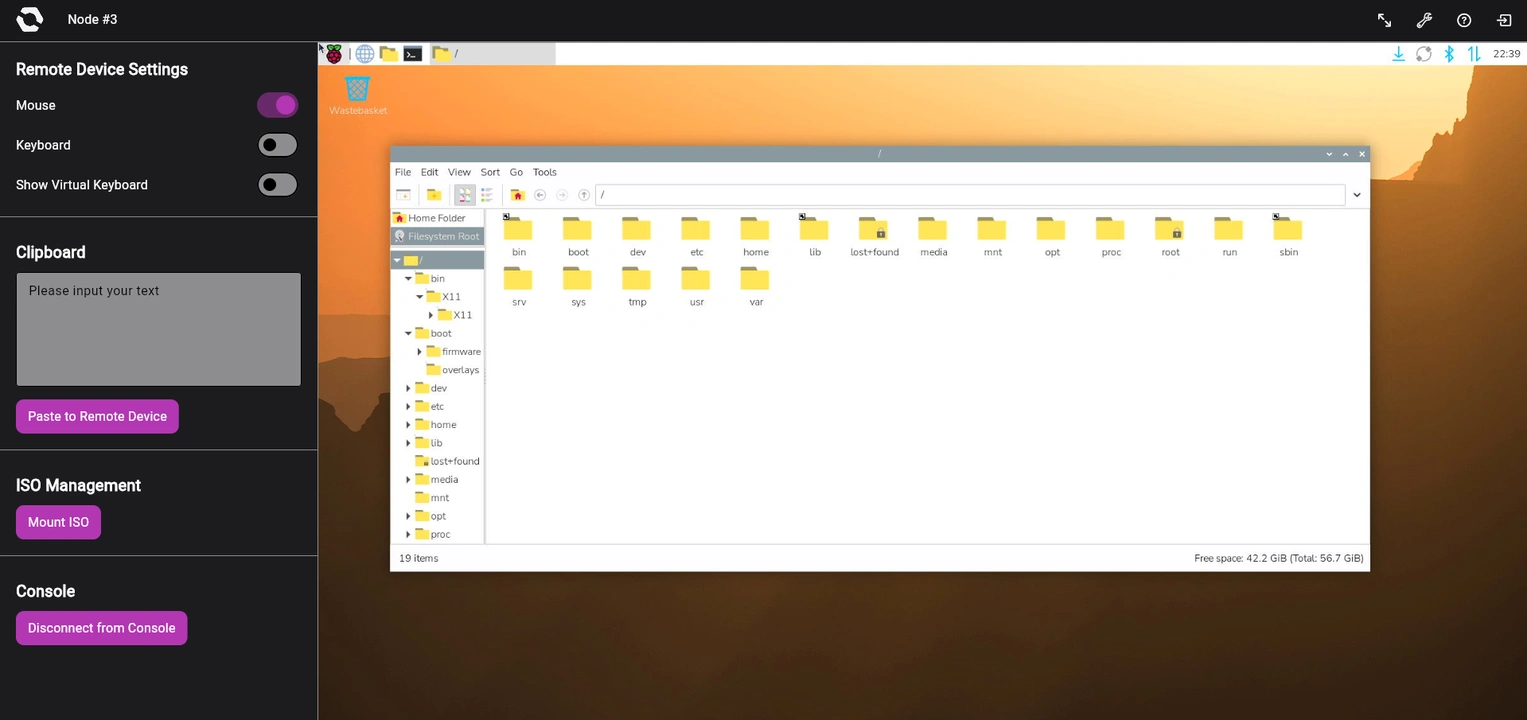
We’ve made a lot of progress on the Management Module software since our last dev update, including significant improvements to the quality and responsiveness of the VNC server’s output. We’ve also refined the web interface, created lots of new endpoints, and squashed many bugs along the way.
The team also settled on a couple of significant changes: we revisited how Compute Node information reaches the Management Module, and separated console sessions from power controls. These decisions and the results of our testing led to notable changes to all three of our specifications, which will be reflected in their next update. There’s a lot to go over, so let’s dive in.
Backend changes
Replacing hw-info with noded
When we were putting together our test hardware, our hardware engineer and software developer Carlo Jones created hw-info. It’s a Rust crate that the Node API was supposed to use to get information about installed Compute Nodes. We could then display those data on the appropriate Node page on the web interface.
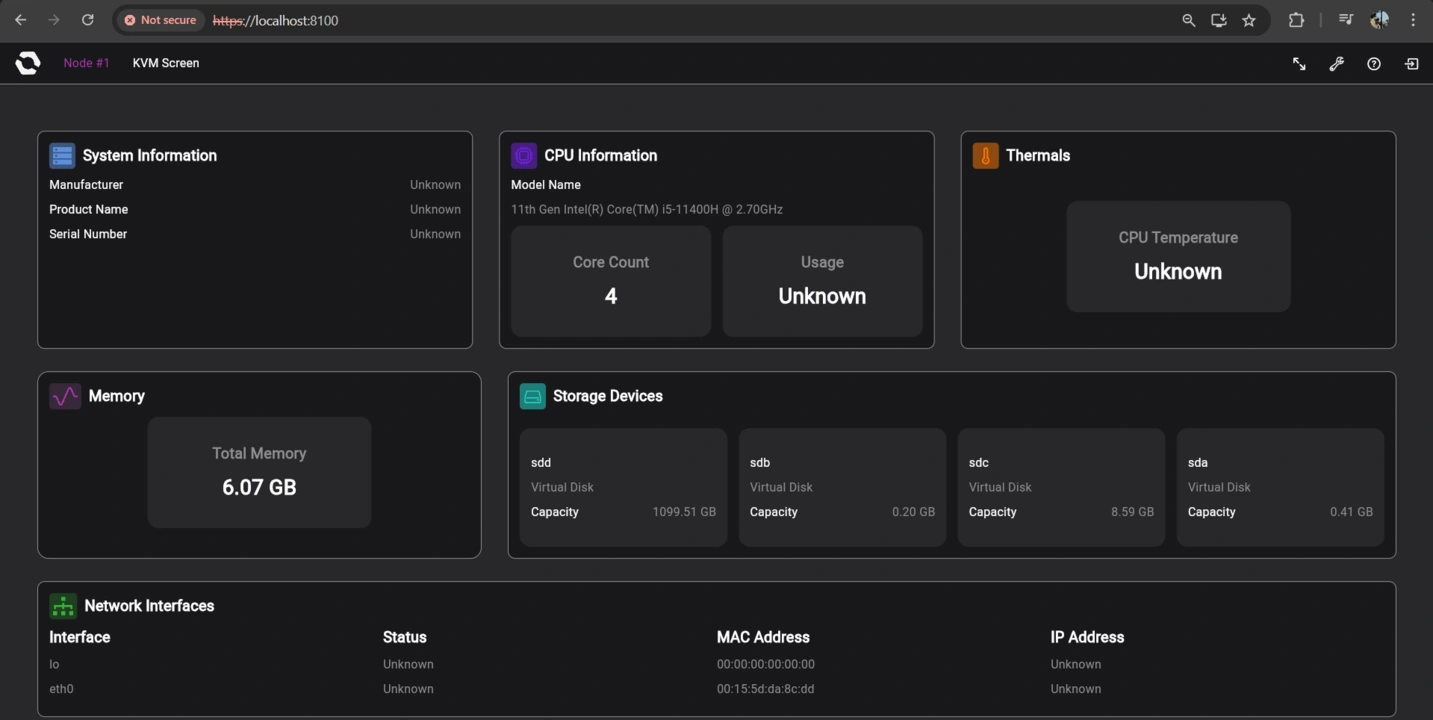
During our testing, we realized that the crate was reporting the specs of the system it was running on. In production hardware, that would be the Management Module itself. This clearly wasn’t our goal, and that information should only be available to platform administrators, not node admins. So we started working on noded, an optional daemon that can be installed on Compute Nodes.
Besides displaying node hardware information on the web interface, we also plan for noded to support event logging and backing up Compute Node configuration files. Those configuration files will streamline node replacements. We’re also exploring whether OS provisioning and storing node encryption keys are within the scope of noded.
Separating console sessions from power controls
This is perhaps the most impactful change since our last update. It resulted in changes in both the Management Module’s software and its hardware specifications. In our original design, KVM access and power controls were part of the same flow. When a user picked a node on the Node selection page, they would automatically initiate a console session on that node.
However, our specification developer Jon Choi realized that we needed to add components on the Enclosure to detect the power state of installed Compute Nodes, along with several new pinout assignments.
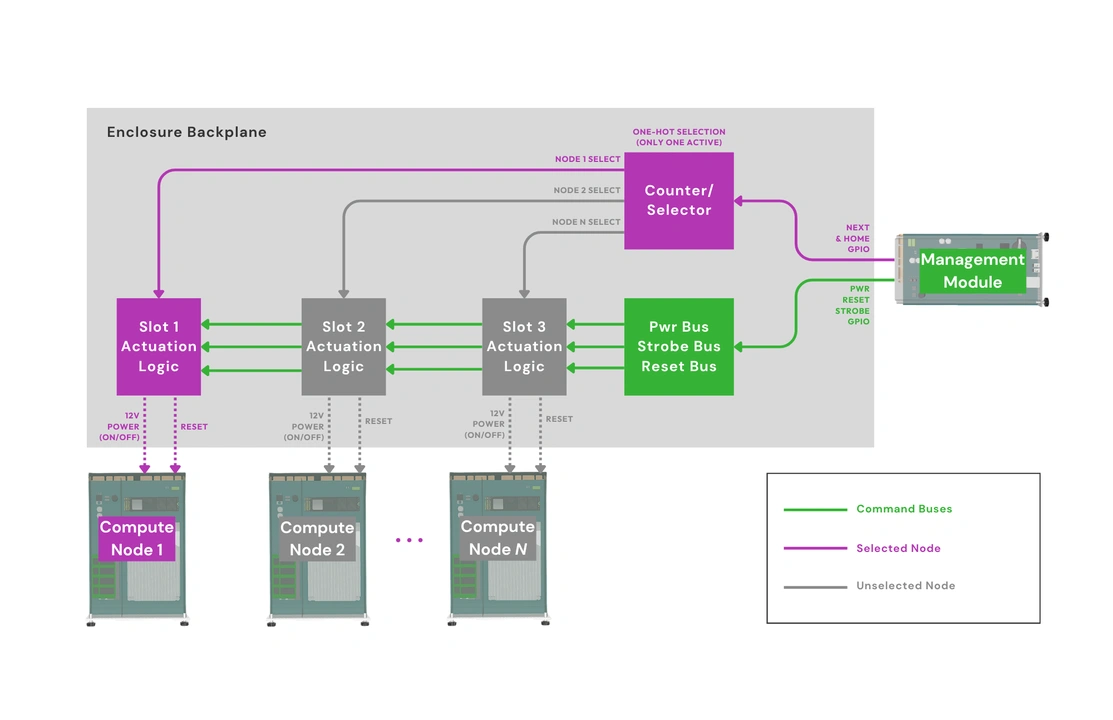
Since we were splitting up the KVM and power state components, we decided to split up their controls as well. This way, an admin can toggle the power of one node while they’re on another node’s console. We’ll take a closer look at the new architecture and its related changes in our next Management Module hardware dev update.
Virtual media functionality
Some of the Node API endpoints that lead developer Aldrin Bobita created since our last update enable mounting and managing ISO files. Both admin types can upload such files, which would then be kept in the Management Module’s internal storage. Platform admins have no file size restrictions, but they can set total file size limits for node admins. Platform admins can also designate an image file as “public”, allowing all admins to access that file. Only one image can be mounted at any given time.
USB emulation
Carlo updated the gadget script on the Management Module server to merge the absolute and relative mouse descriptors into one function. Christian then merged the corresponding device files into one mouse file handle on the usb-emulation crate. Absolute and relative mouse reports are now sent over the same HID gadget device, but they each have their own report ID prefixes. We’ll also add a setting on the web interface that will allow users to switch between the two mouse modes.
Minimizing required Enclosure metadata
While we’re still working on a way to display Enclosure information on the web interface, Jon already pointed out that we don’t want to require lots of metadata from Enclosure vendors. As such, the only Enclosure metadata the Management Module requires is the number of Compute Node slots on the Enclosure.
If an Enclosure’s configuration file contains additional information such as model name, slot name, or a layout diagram, we can display those in the web interface. But the Management Module will work without any of that data. This should also make it easier for users to fully utilize secondhand managed Enclosures, even if they don’t have the original Enclosure configuration files.
VNC server performance
Our original V4L2 MJPEG decoding used jpeg_decoder and a custom RGB conversion function. Our developers Ivanne Bayer and Christian Gantuangco found a consistent ~500ms delay in this path. To fix this, they switched to turbojpeg, which handles JPEG decoding and pixel format conversion in a single step. That brought the average server-to-client message cycle down from ~600ms to ~70ms, along with noticeable improvements to image quality.
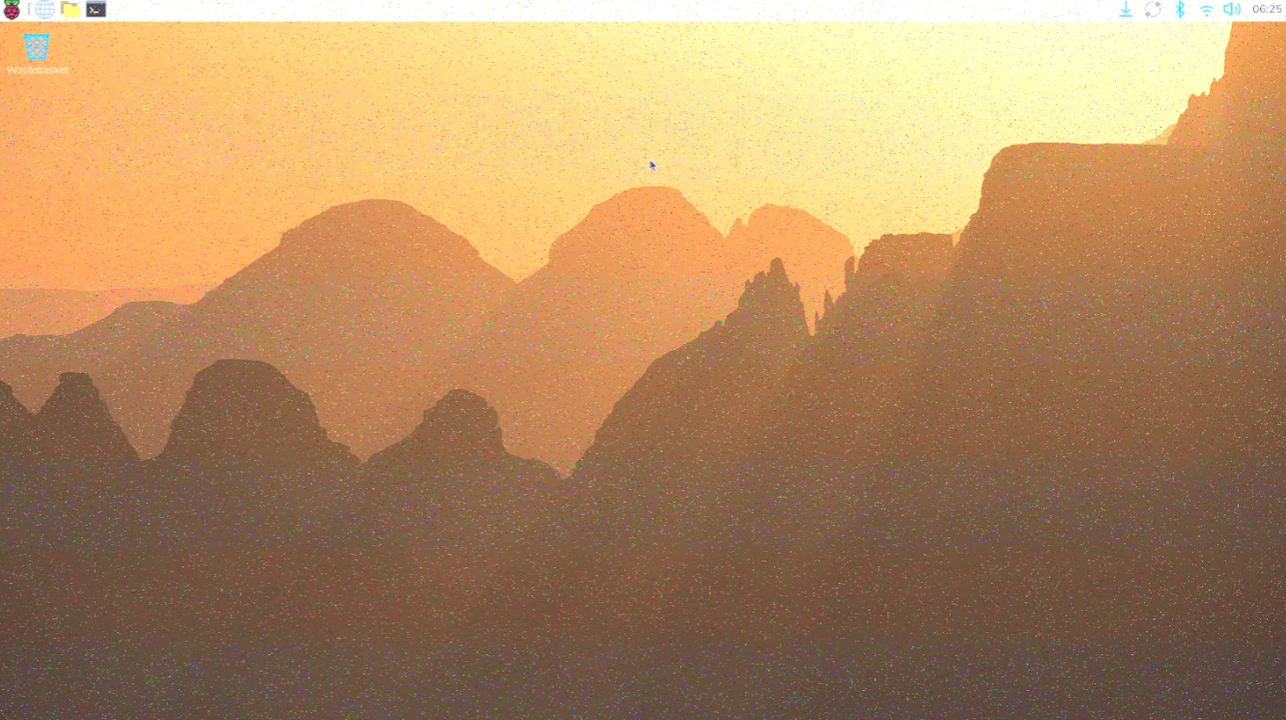
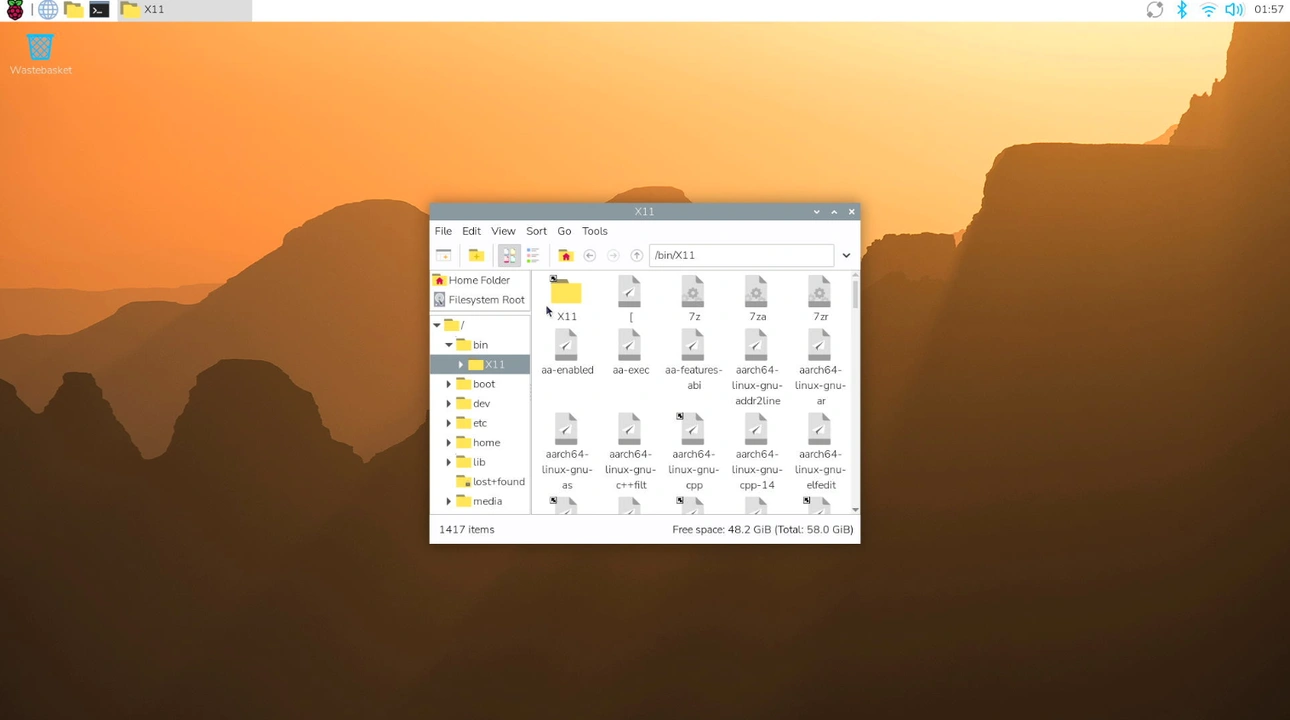
In terms of message handling, the original server ran a single loop that processed keyboard input, mouse input, and framebuffer update requests together. However, the framebuffer stalled when the client sent a lot of mouse events. Every reader_task had to await its handler before it could process the next input. Christian’s fix involved a custom HID event queue implementation for parallel pointer and key events.
Christian also made several improvements on the encoding front. Previously, the server created a new instance of ZrleEncoder on every encode_rectangle call. He refactored the code so that the encoder would persist across calls instead. Christian also added solid tile detection to ZRLE:tiles. This compressed the pixel data down to a few bytes, reducing both bandwidth and Zlib CPU usage. He also optimized Hextile encoding, reducing the amount of bytes sent per frame for a fullscreen window from over 3MB to less than 1MB. Christian also added support for CopyRect encoding to the backend.
At this point, our VNC server handles most workloads well. Terminal sessions and web browsing feel responsive at 1080p on ~60ms ping. We’re working on improving performance further, particularly during continuous video playback at high resolutions. While we’re not targeting video playback as a use case at this point, we’re aware that such content can play incidentally during normal use, such as when a video ad pops up while browsing.
Frontend changes
Aside from helping with the VNC server, Ivanne also connected the new backend endpoints to the frontend. He also made several rounds of changes to the web interface.
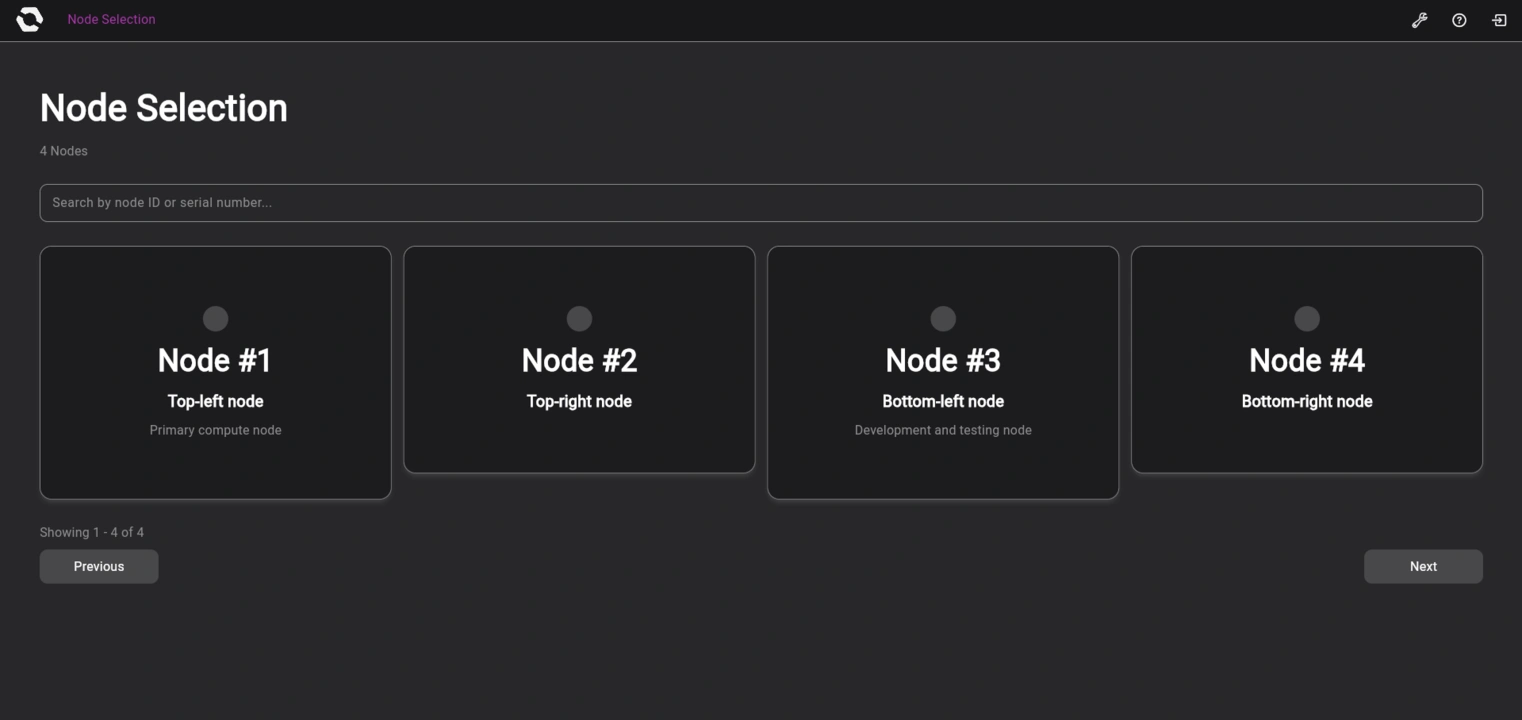
The navigation bar is now consistent across the whole interface, with an OpenSFF logo on the top left followed by context-sensitive text, such as “Setup” for configuration pages related to the Management Module and “Node #N” (or the selected node’s configured name) for Node pages.
The Node selection page now has a search bar and can be paginated. Platform admins see all Compute Nodes connected to the Management Module, while node admins see only their assigned nodes.
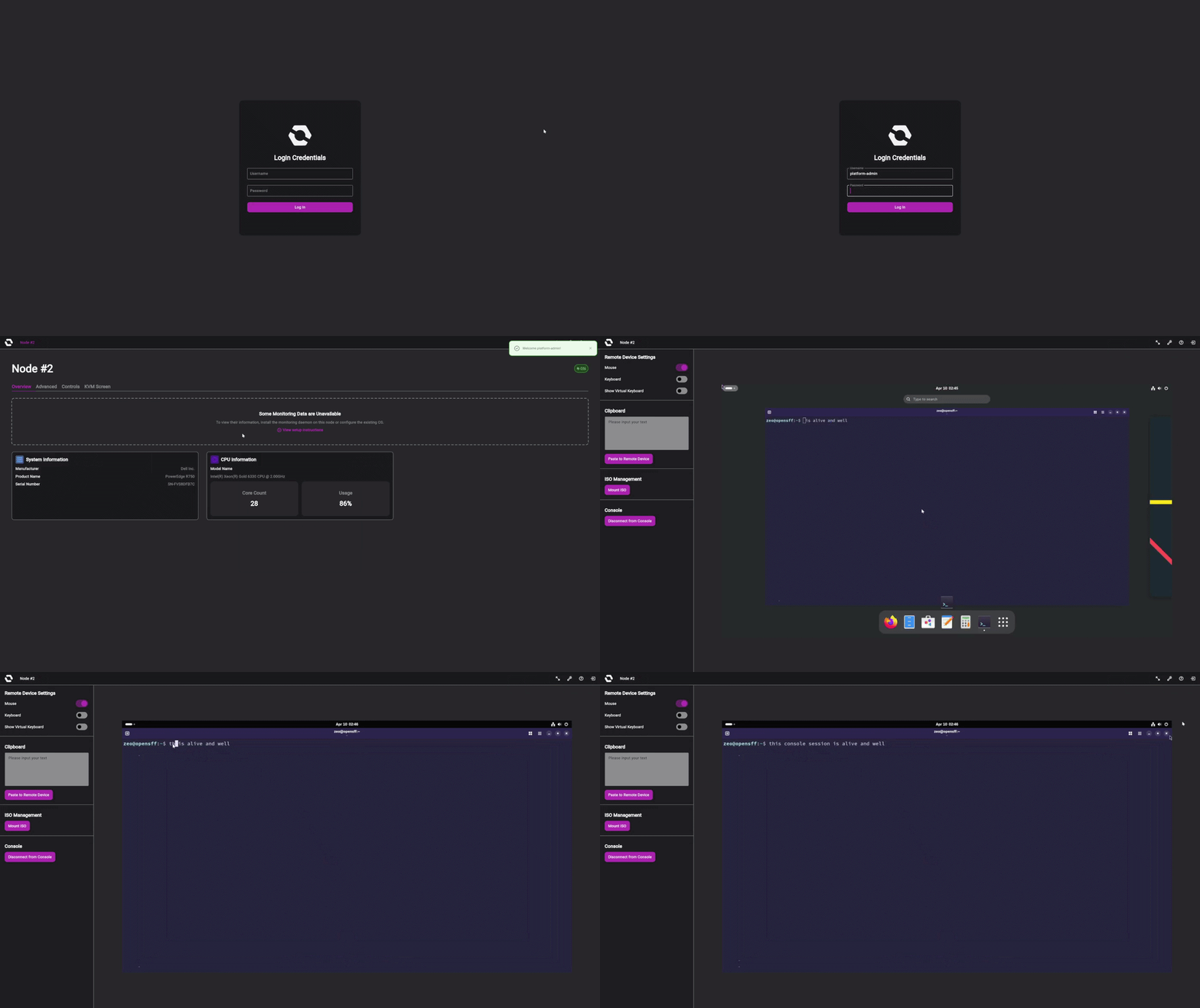
After the admin selects a node on the Node selection page, they will land on the corresponding Node page. The Overview tab on that page shows node information.
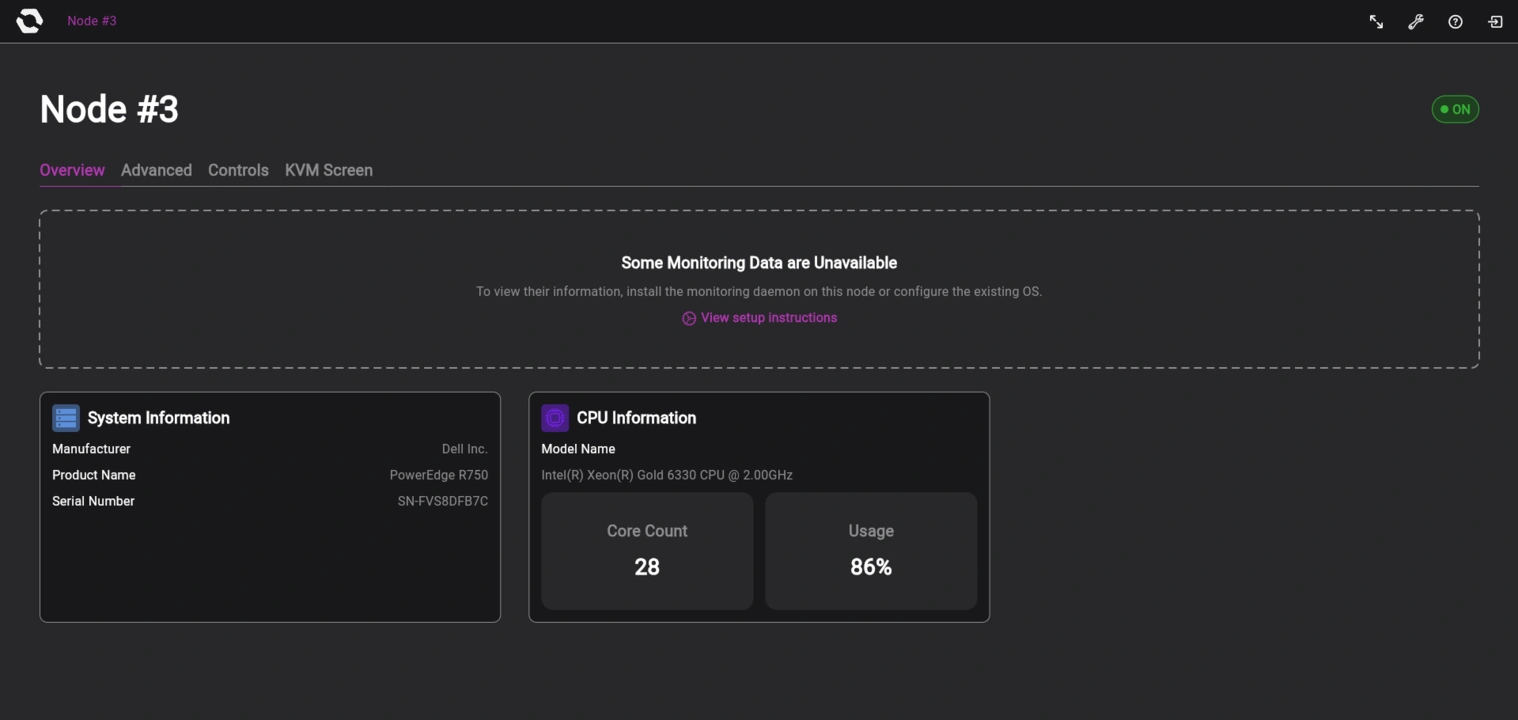
The Advanced tab is visible only to platform admins. It shows the power and network states of the selected node.
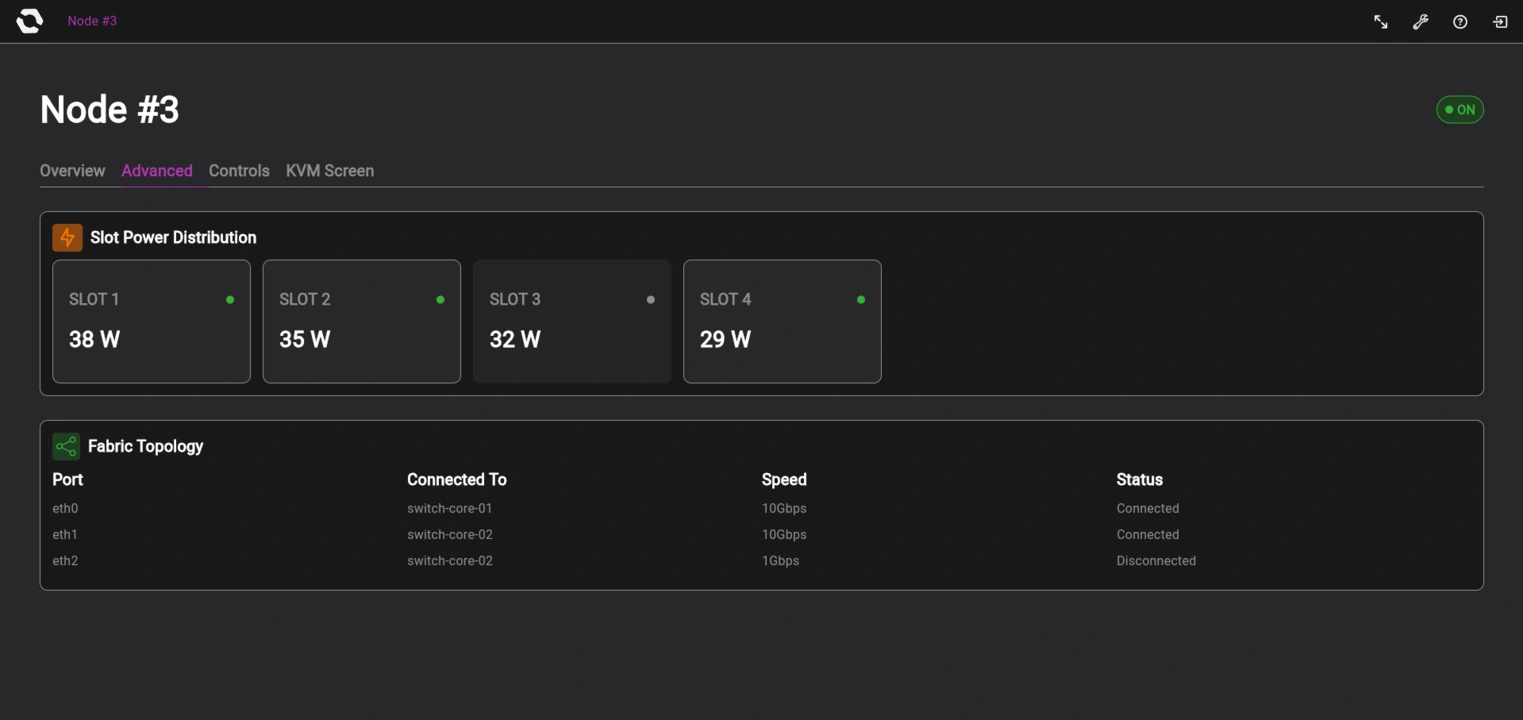
The Controls tab lets users toggle the selected node’s power and adjust hardware settings such as fan speed.
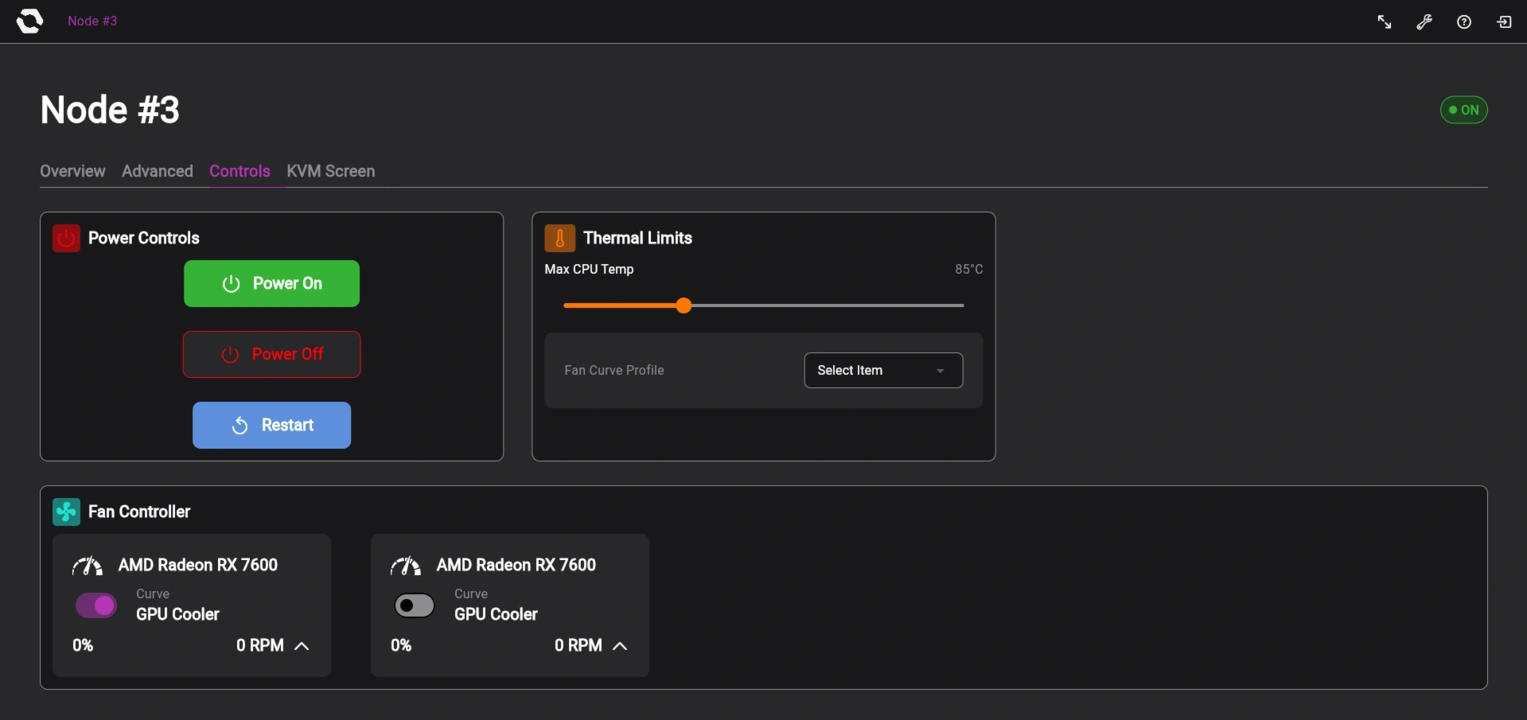
When users select the KVM Screen tab, they’ll be prompted to either connect to the node’s console or go back to the Node page. If someone else already has the console, the KVM Screen will instead inform the user accordingly.
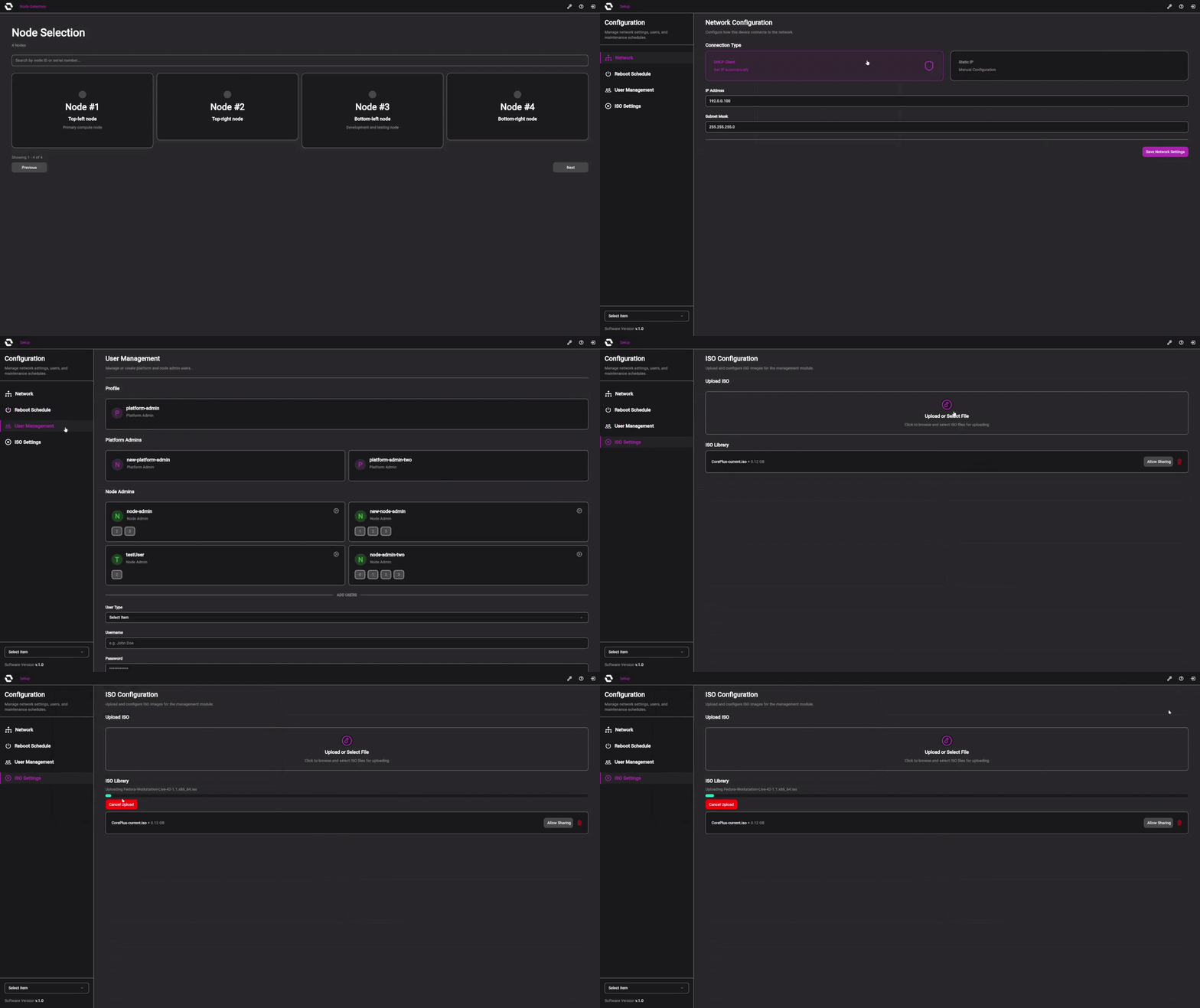
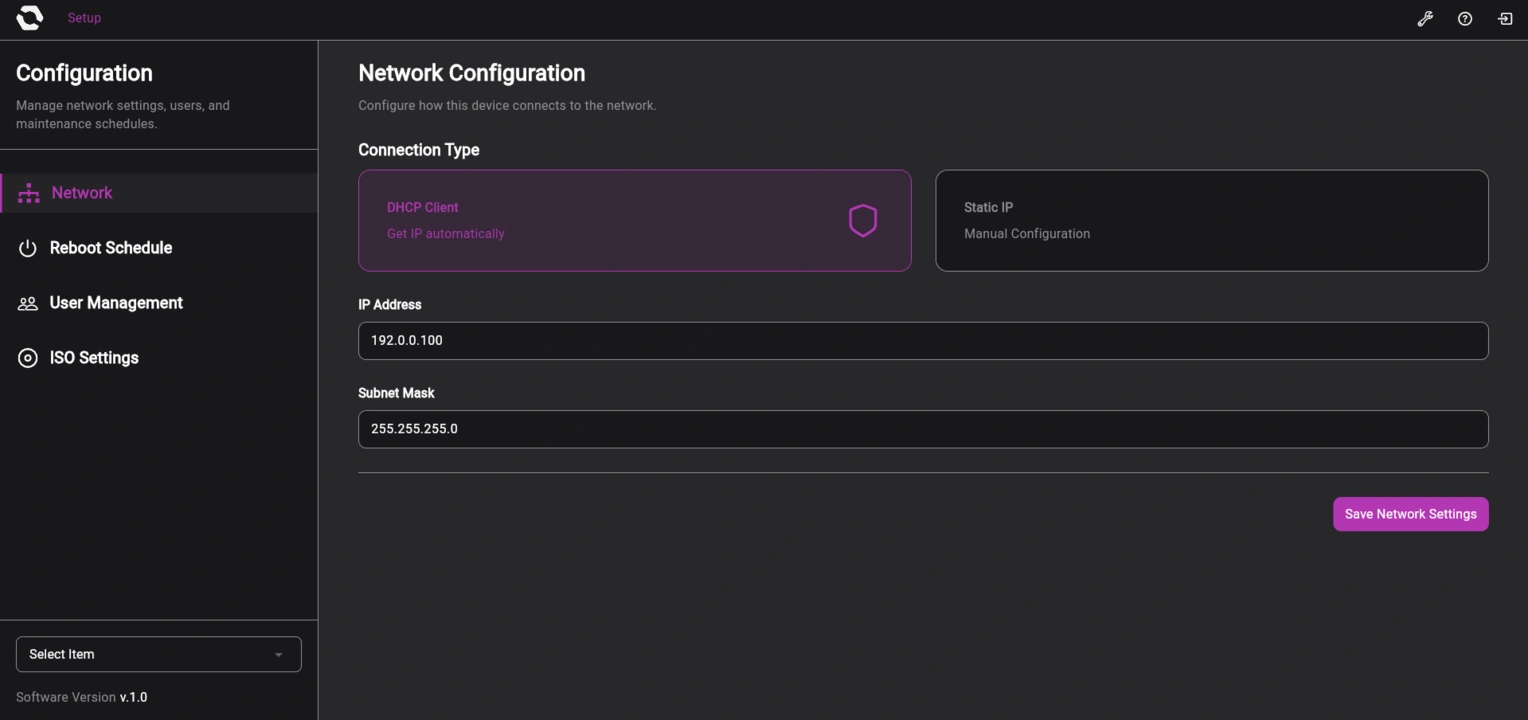
On the Configuration page, platform admins and node admins now see different versions of the Network and User Management settings. In the Network settings, platform admins can set a node’s IP address to be configured via DHCP or static IP, while node admins can only view the current setting.
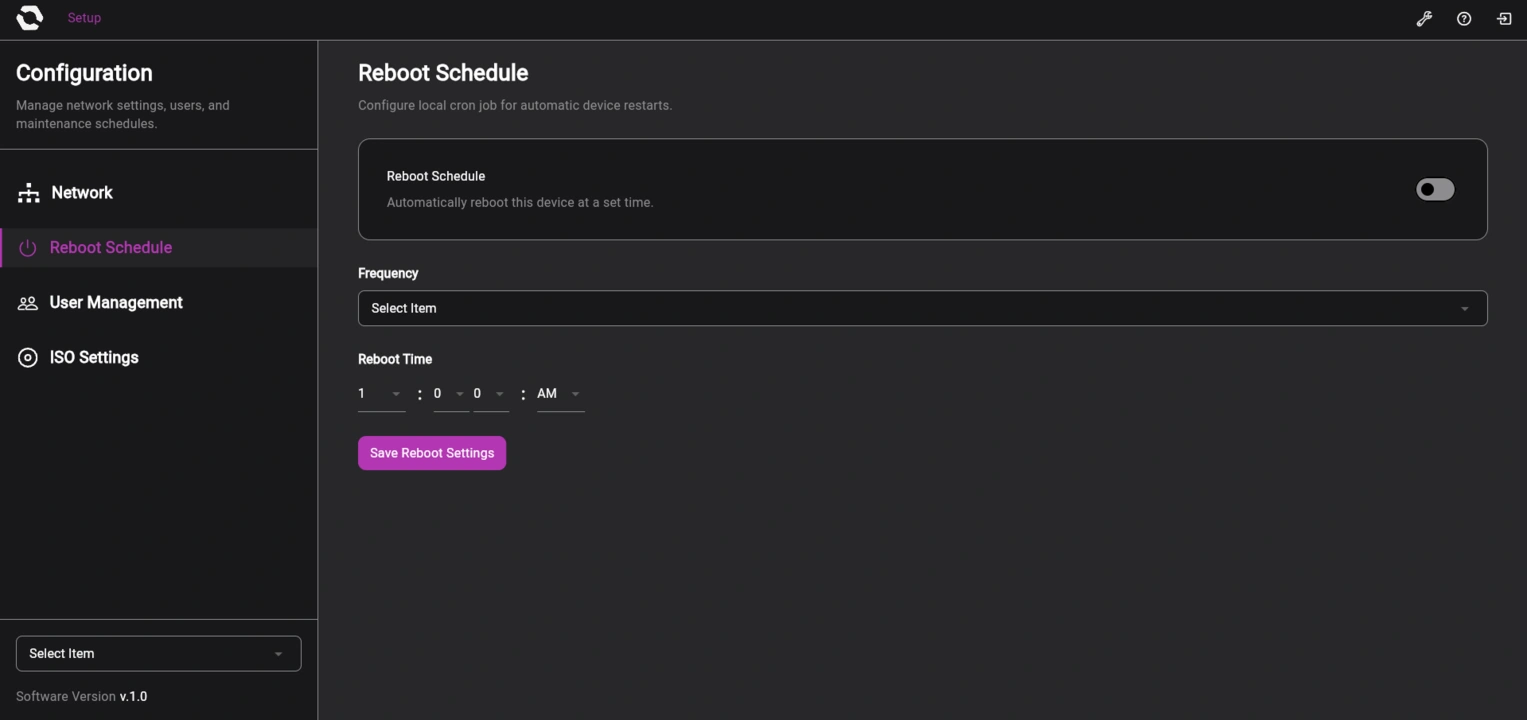
The Reboot Schedule settings are now restricted to platform admins.
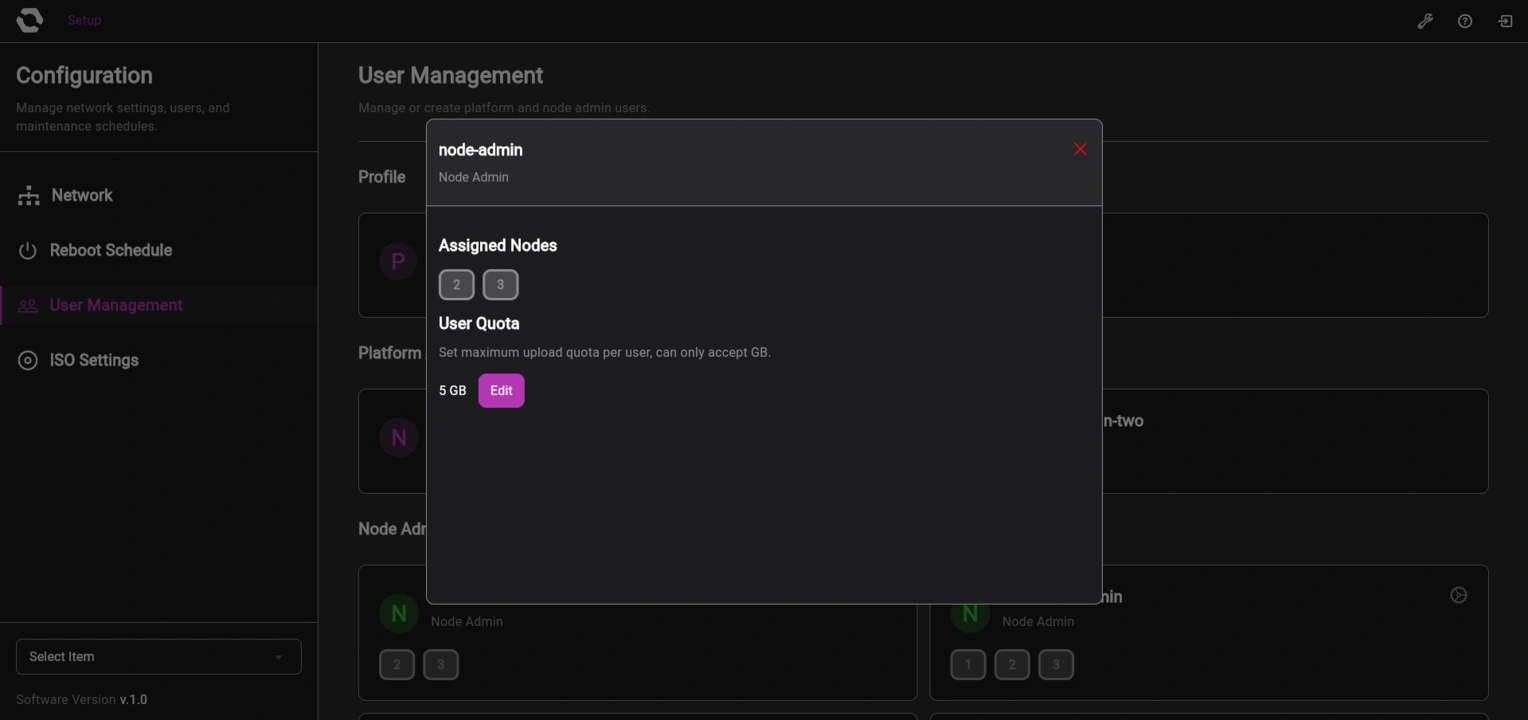
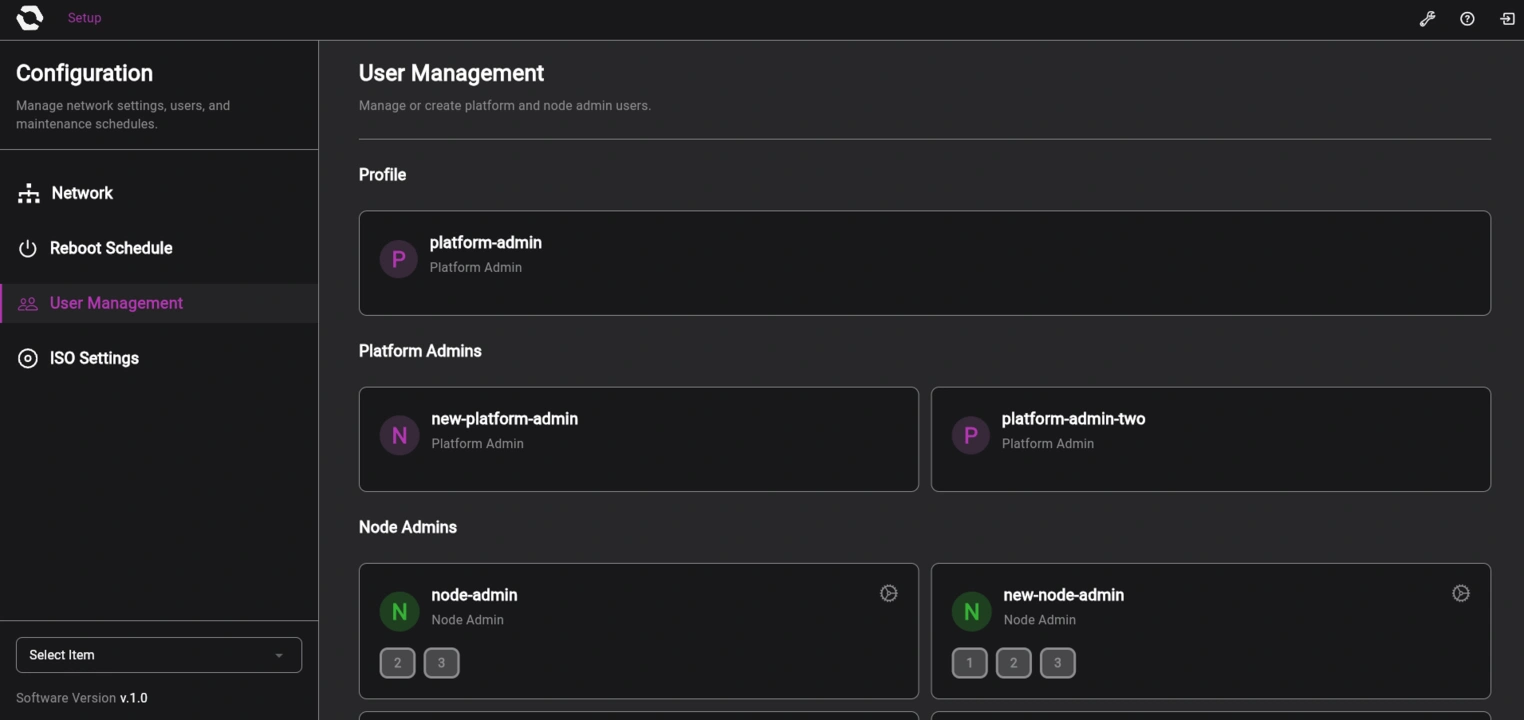
On the User Management page, node admins can see their assigned node IDs and user information, while platform admins can create additional platform admin and node admin accounts.
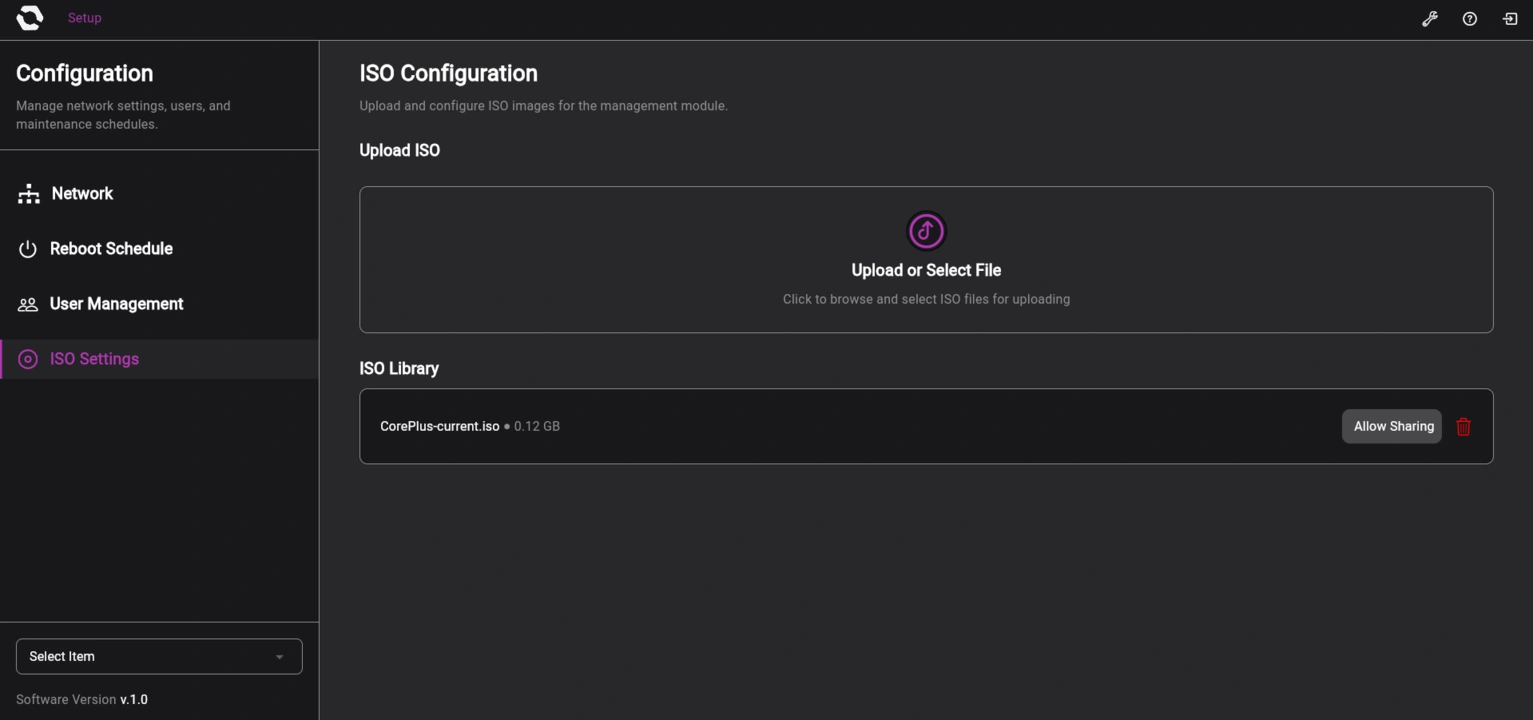
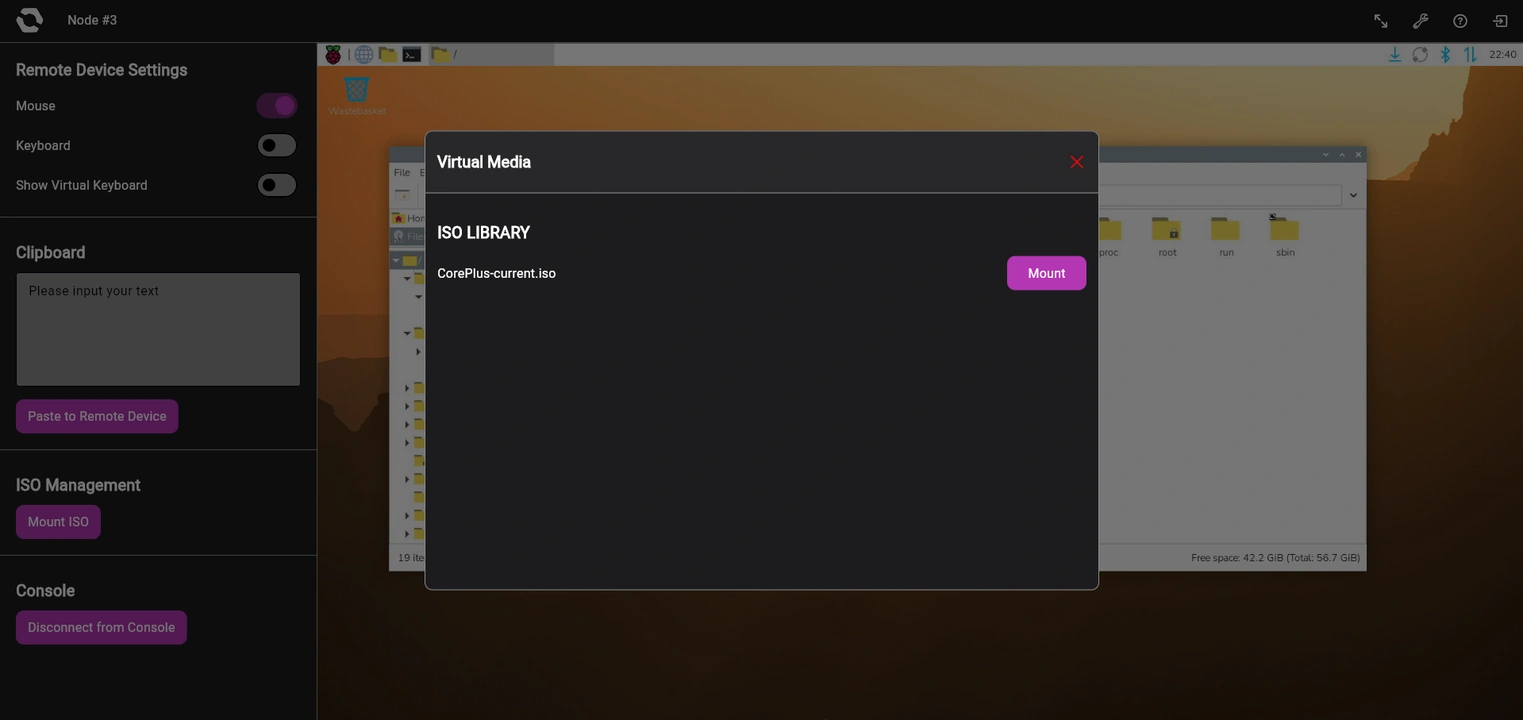
Ivanne also connected Aldrin’s virtual media endpoints. The ISO Settings lets admins add ISO files or delete the ones they added.
Admins can then mount or unmount available image files while on a console session.
Integration testing
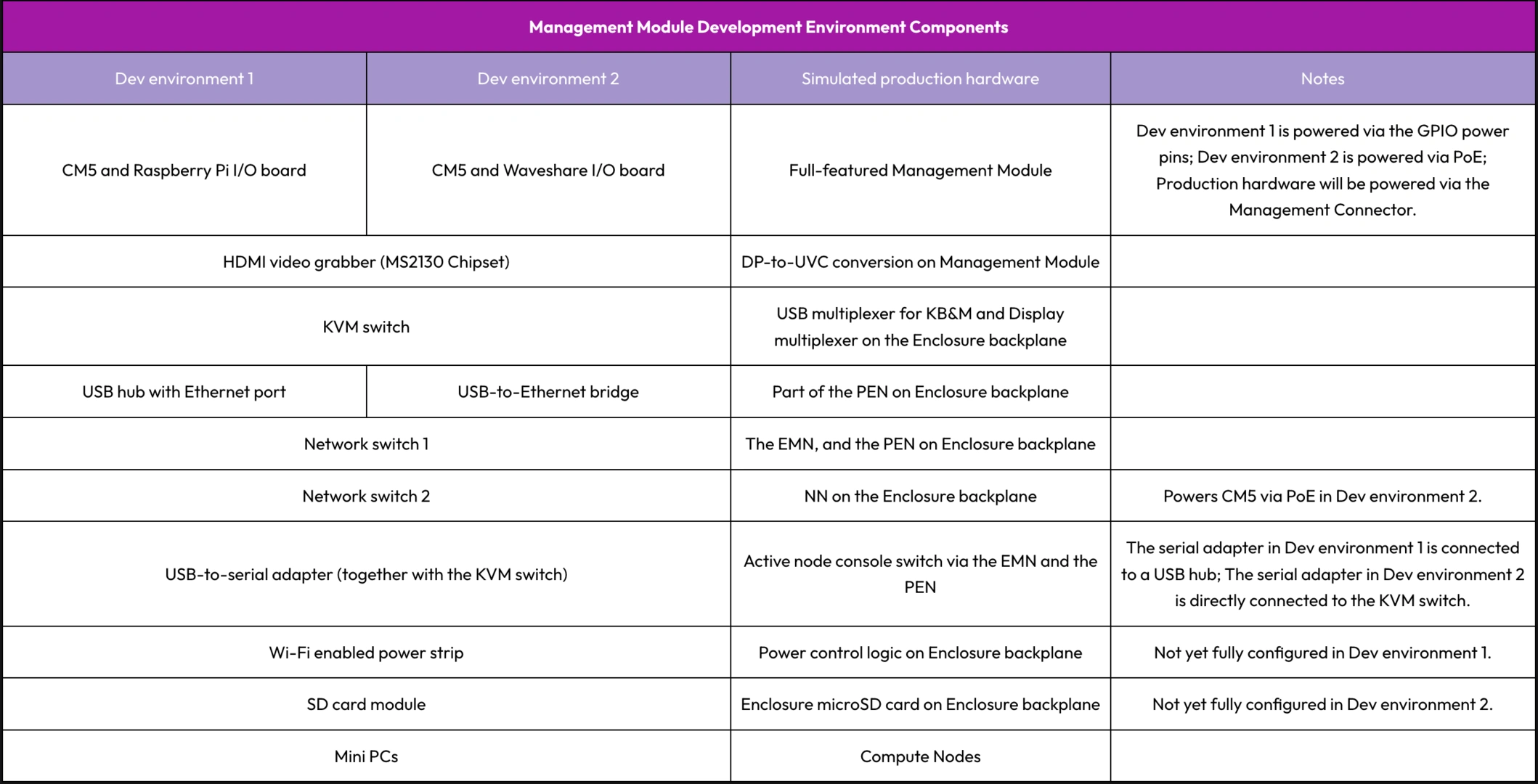
The team ran end-to-end tests on Dev Environment 1. Node switching, console sessions, power controls, and ISO image uploading and mounting all worked as expected. We’re going to continue testing on both of our test hardware setups, though we have an outstanding issue with node switching on Dev Environment 2.
Build with OpenSFF
We still have a long way to go, and we’re excited to work on our design changes. Aside from more optimizations to the VNC server, our immediate goals also include finishing noded, rounding out the Node API, and creating a media writer that will allow users to configure and flash the Management Module software to an SD card or USB drive. We’re also exploring how we can minimize the size of the software’s distribution image.
Join us again on our next update. We encourage you to read our specifications, and we’d be grateful if you spread the word about OpenSFF. For technical clarifications and other inquiries, reach out to our development team at [email protected].
Other Articles

Meet OpenSFF: an open hardware standard that enables cross-vendor compatibility, modular systems, and sustainable hardware reuse.
August 11, 2025
We go over the rise of virtualization and the open software adopted by home server enthusiasts, as well as the current challenges and the future of the hobby.
September 06, 2025

Learn why OpenSFF adopted the SFF-TA-1002 connector standard and how it enables our vision.
September 18, 2025