Blog
Management Module Software Development Update #4: Making OpenSFF Media Writer
Introduction
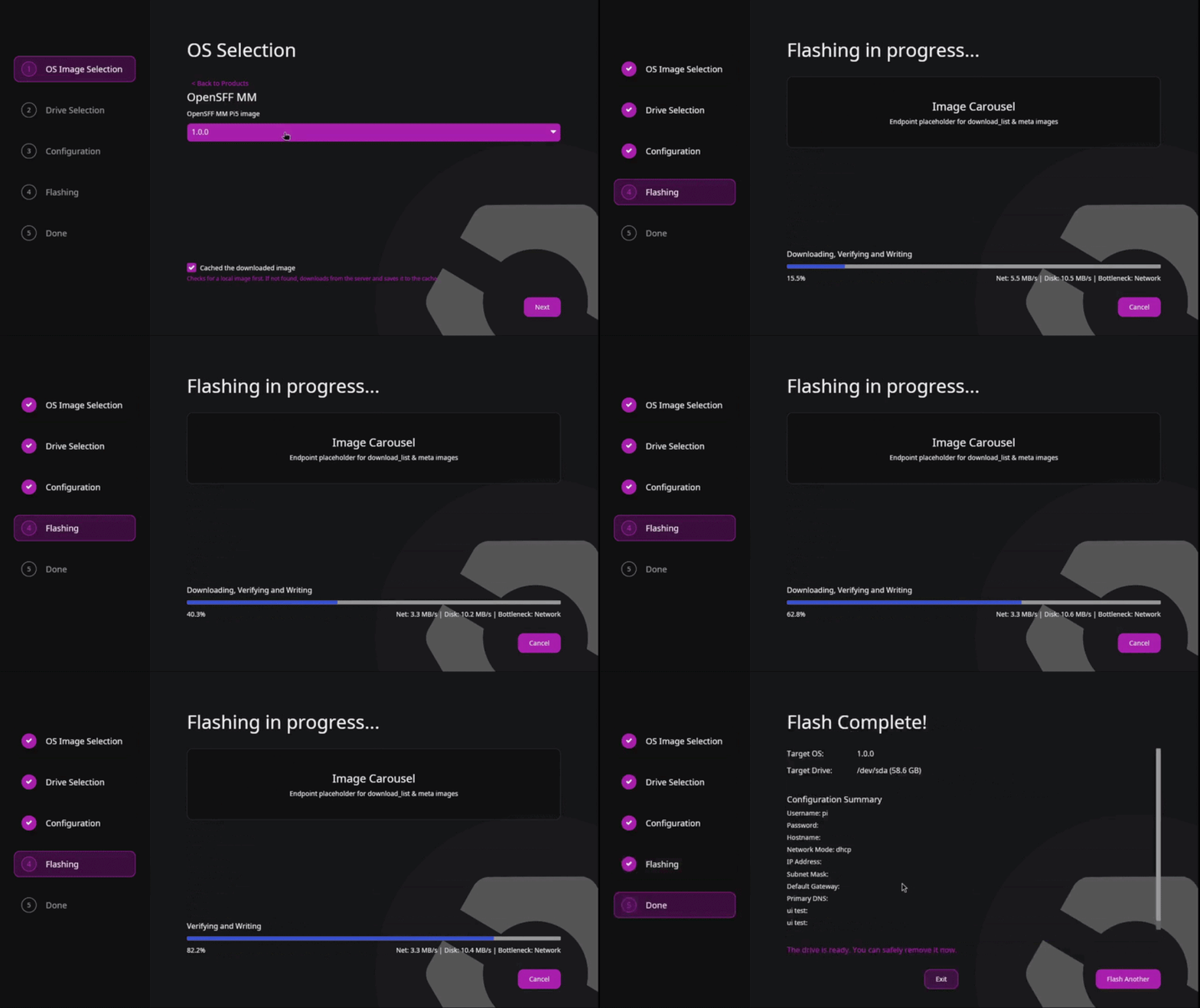
Our previous development updates for the Management Module software focused on its requirements, the Management Module’s hardware components, our initial progress, and our latest web interface as well as our test environments. While we continue to work on the software, our developer Carlo Jones has also been building a convenient way for vendors and their users to get the software onto a smart Management Module. OpenSFF Media Writer is a desktop tool for downloading, verifying, and flashing Raspberry Pi OS along with the Management Module software onto a removable drive. In this article, we’ll talk about why we built the media writer and how it works.
What is a media writer?
A media writer is a tool that takes a software image, usually an operating system, and writes it onto a removable media in such a way that a device can boot from it. Ideally, a media writer would also check if the image file is authentic or uncorrupted before flashing it to the target drive.
Popular examples of media writers include Balena Etcher, Rufus, and Raspberry Pi Imager. The latter loosely served as a basis for OpenSFF Media Writer.
Why did we make our own media writer?
We have three requirements that led us to create our OpenSFF Media Writer. First, we want our tool to be easily adaptable. As such, Carlo wrote a set of composable Rust crates instead of a single application. We have mw-ui for the interface, which is based on the iced Rust library. We then have mw-core for shared logic, and mw-helper as a root-privileged daemon that performs the actual flashing. Splitting the media writer makes it easier for other developers to build their own version of the tool, complete with their own branding and configuration, by writing a minimal amount of code on top of the crates.
Second, we want the media writer to fetch images from a dynamic image source rather than hardcoding the tool around a single image. Our media writer reads from a catalog that supports multiple products and multiple versions of each product, instead of only the latest version of the Management Module software. This lets us reuse the tool and server-side infrastructure for other software down the line.
Our third requirement relates to how the image is transferred and processed. Other media writers separate the download, verification, and write processes. Carlo developed our media writer to run all three as a concurrent pipeline, passing data from one stage to the next as it becomes available to save time.
What did we use to build our media writer?
Alongside the application itself, we also built a server-side pipeline that prepares and describes the available images that the media writer can download.
Server side
Our build pipeline packages the Management Module software—mm-server, vnc-server, and opensff-provisioner—into a .deb package and bakes it into a base Raspberry Pi OS image using rpi-image-gen, Raspberry Pi’s tool for creating custom Raspberry Pi OS images.
That step gives us a compressed image and a .meta file, which contains information such as the minimum required drive size and the settings that will be available during the configuration step. For compression, we use the flate2 Rust library to avoid dependency on C-based tools and keep cross-platform builds simpler.
Carlo built two command-line tools to manage these operations: mw-meta generates the .meta file per image, while mw-manifest maintains a manifest file that lists every available product and version. Each entry in the manifest points to its own .meta file, but mw-manifest can also sync the manifest to a directory of .meta files to automatically reflect when an image is added or removed from the directory. The sync feature does require at least one version seeded per product, because it works out the URL pattern from an existing entry.
Client side
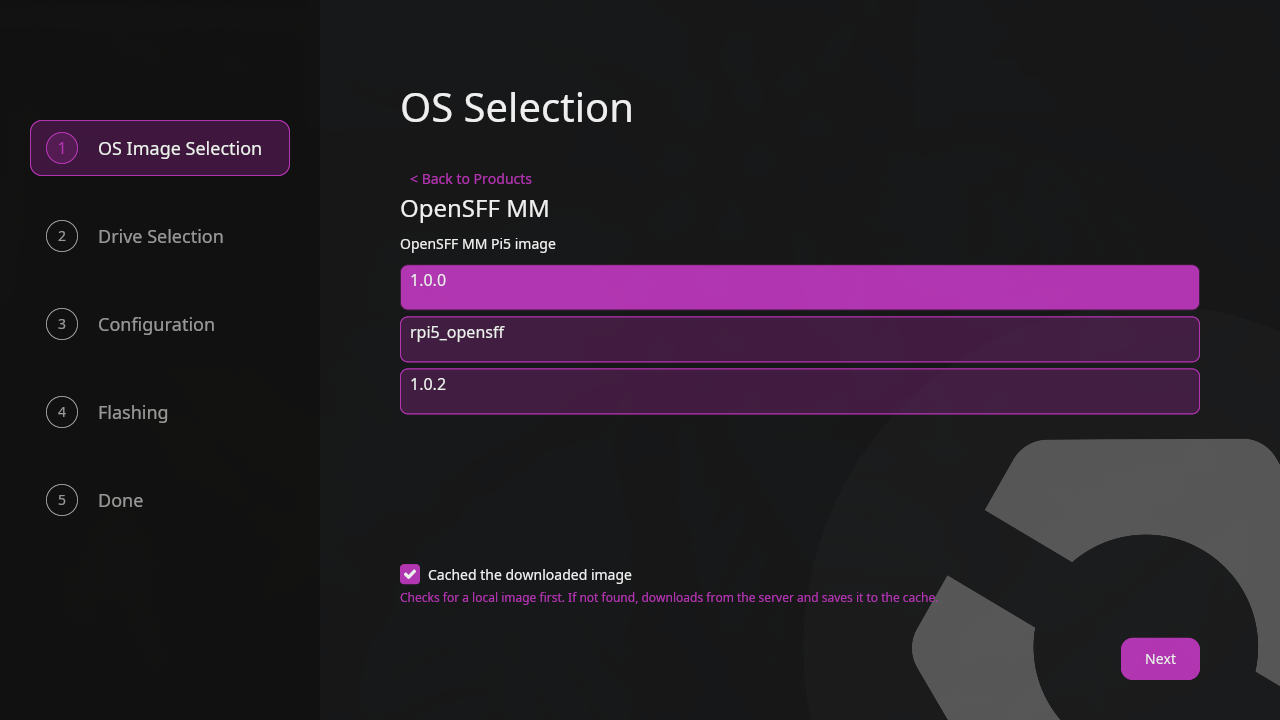
When the user starts up the media writer, the tool fetches the manifest and displays the images—organized according to their product and version—that can be flashed. Once the user selects an image, the media writer fetches that image’s .meta file and builds the configuration screen on the fly, displaying only the relevant fields rather than a fixed set.
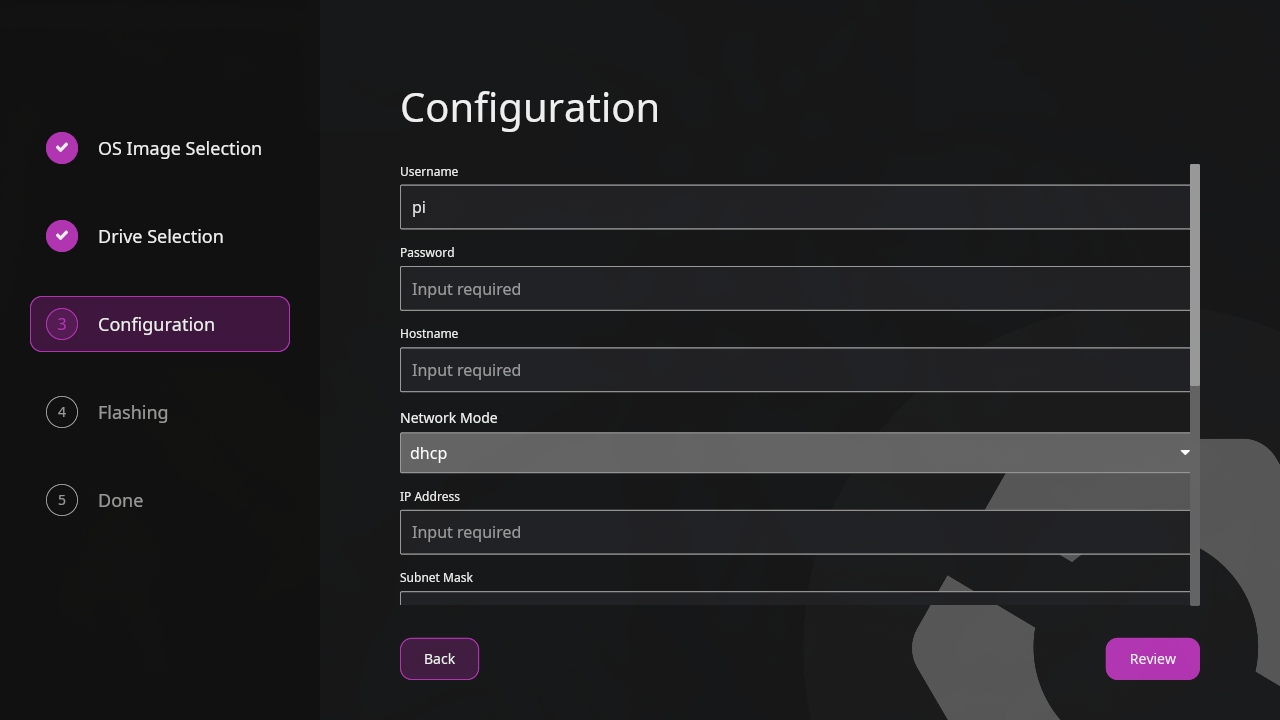
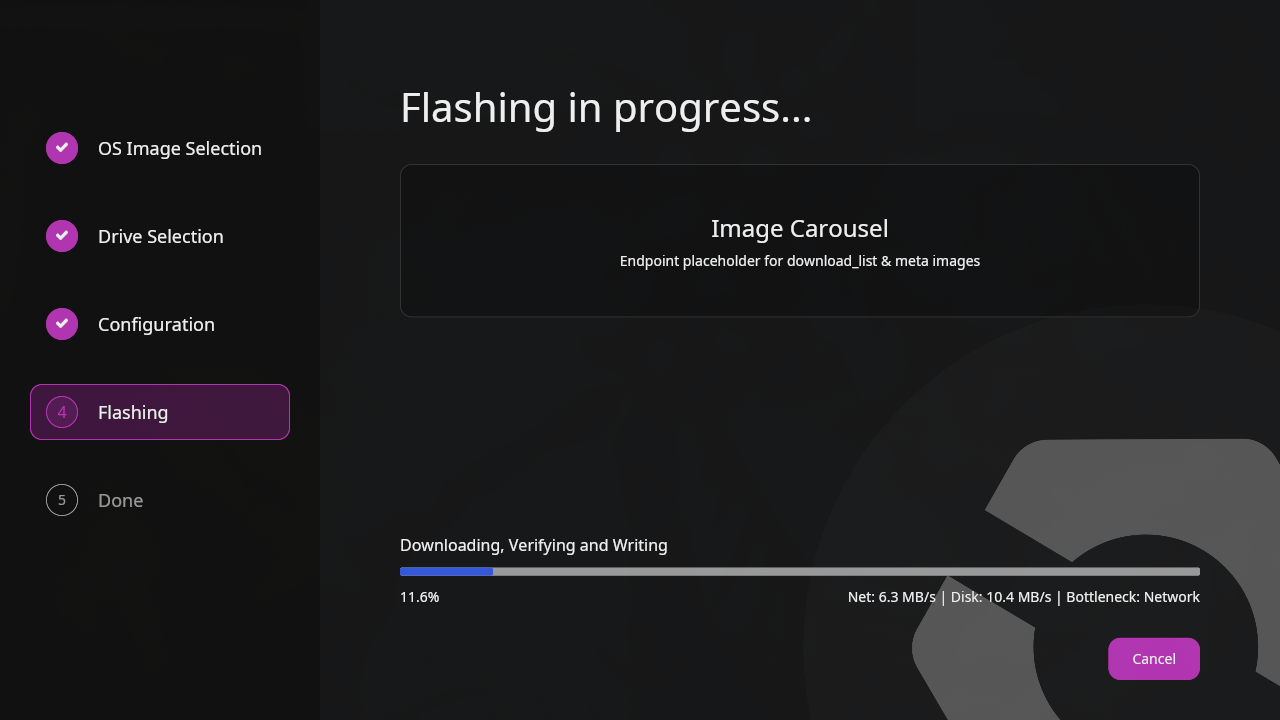
The user then picks a target drive and fills in the configuration screen. At this point, mw-helper runs the concurrent download, verify, and write pipeline. It downloads and caches the image with the latter still in its compressed form. Portions of the image are decompressed on the fly as they’re verified and written. The media writer displays its progress via separate network and disk-write speeds. It also tells the user whether their network or drive is the bottleneck.
The media writer then writers the user’s configuration settings into a file and places that file into the target drive’s boot partition. The first time a Management Module is powered on with the target drive mounted into it, opensff-provisioner reads the configuration file and applies those settings—which may include the hostname, network setup, and Management Module services to enable—to the running OS. The provisioner then disables itself so it won’t run again on subsequent boots.
Build with OpenSFF
OpenSFF Media Writer is already functional. During development, Carlo had to get through a few tricky hurdles, including figuring out how to properly keep images compressed when cached on the user’s disk but decompressed when they’re hashed and written. He’s currently polishing the UI, particularly the configuration screen. For instance, we need to show the static IP, subnet, gateway, and DNS fields only when the user selects static networking. Beyond that, we’re deciding whether a command-line version of the media writer should be our next priority.
The media writer and its crates will be available to OpenSFF members. We’ll post an update here on our blog when our membership program launches. For now, we encourage you to read our specifications, and help spread the word about OpenSFF. For technical clarifications, partnerships, and other inquiries, reach out to our development team at [email protected].
Other Articles

Meet OpenSFF: an open hardware standard that enables cross-vendor compatibility, modular systems, and sustainable hardware reuse.
August 11, 2025
We go over the rise of virtualization and the open software adopted by home server enthusiasts, as well as the current challenges and the future of the hobby.
September 06, 2025

Learn why OpenSFF adopted the SFF-TA-1002 connector standard and how it enables our vision.
September 18, 2025